How EasyQuote Calculates Total Price and Total Cost and Why Manual Calculations May Differ
1. Overview
Some users notice a difference between:
the values shown in EasyQuote (Total Price / Total Cost), and
their own manual calculations (Slab Area × Price per ft²).
This difference is not a system error.
It happens because the area displayed on screen is rounded, while the internal calculation uses the exact area value, with full decimal precision.
This article explains everything in a clear and practical way.
2. The Root Cause of the Difference
✔ The EasyQuote interface displays a rounded slab area
Example:
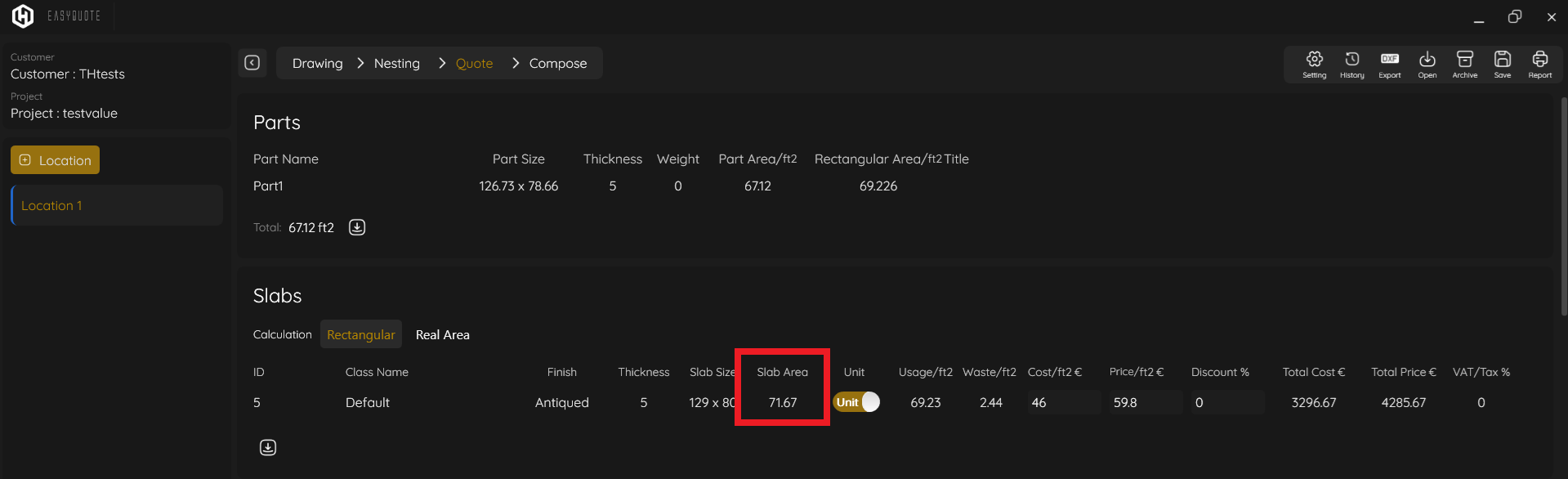
Displayed Slab Area: 71.67 ft²
✔ The system calculates using the real internal area, not rounded
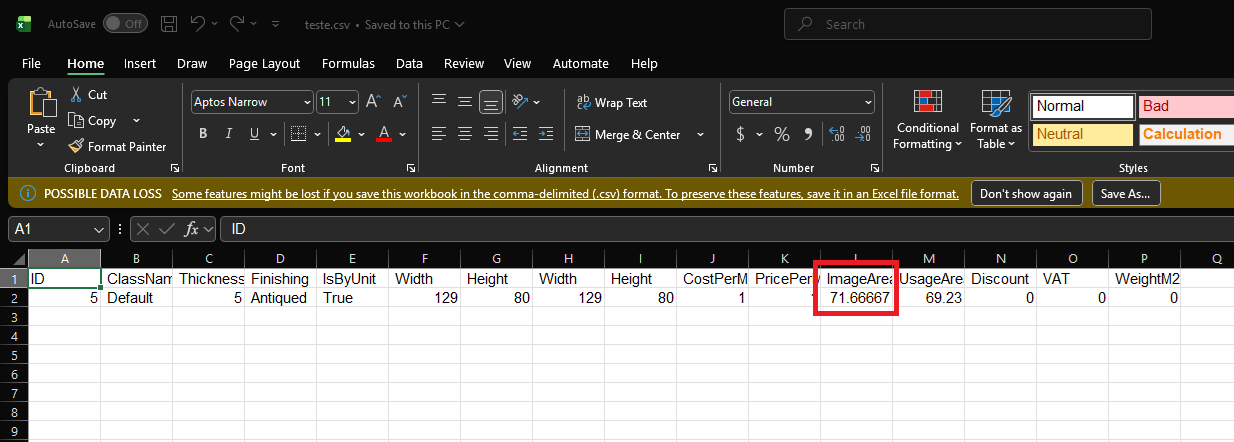
Example from the CSV:
imagearea_internal: 71.66667 ft²
? Users often calculate manually using 71.67
But EasyQuote calculates using 71.66667.
Even a tiny decimal difference generates visible price differences when multiplied by cost/price rates.
3. Visual Explanation of Rounding
Real internal value:
71.66667
Value shown in the UI:
71.67
The display is rounded only for readability.
The calculation never uses the rounded value.
?
4. Real Example (Based on the Customer’s Case)
? Data Provided:
Displayed Slab Area: 71.67 ft²
Actual Internal Area: 71.66667 ft²
Price per ft²: $59.80
Cost per ft²: $46.00
5. CUSTOMER’S MANUAL CALCULATION (using rounded area)
71.67 × 59.80 = 4,285.87
71.67 × 46.00 = 3,296.82
These values do not match what EasyQuote shows.
6. EASYQUOTE INTERNAL CALCULATION (using full precision)
71.66667 × 59.80 = 4,285.67
71.66667 × 46.00 = 3,296.67
7. Side-by-Side Comparison — Understanding the Difference
Total Price
Difference: $0.20
Total Cost
Difference: $0.15
8. Why This Happens (Simple Explanation)
Think of rounding like this:
If you round 9.999 to 10.00, it looks the same visually.
But multiplying it many times produces real differences:
9.999 × 100 = 999.9
10 × 100 = 1000
In EasyQuote:
The UI rounds the area only for display
The system uses the exact unrounded measurement for accurate pricing
This ensures consistent and precise results across all calculations.
9. How to See the Exact Value Used by EasyQuote
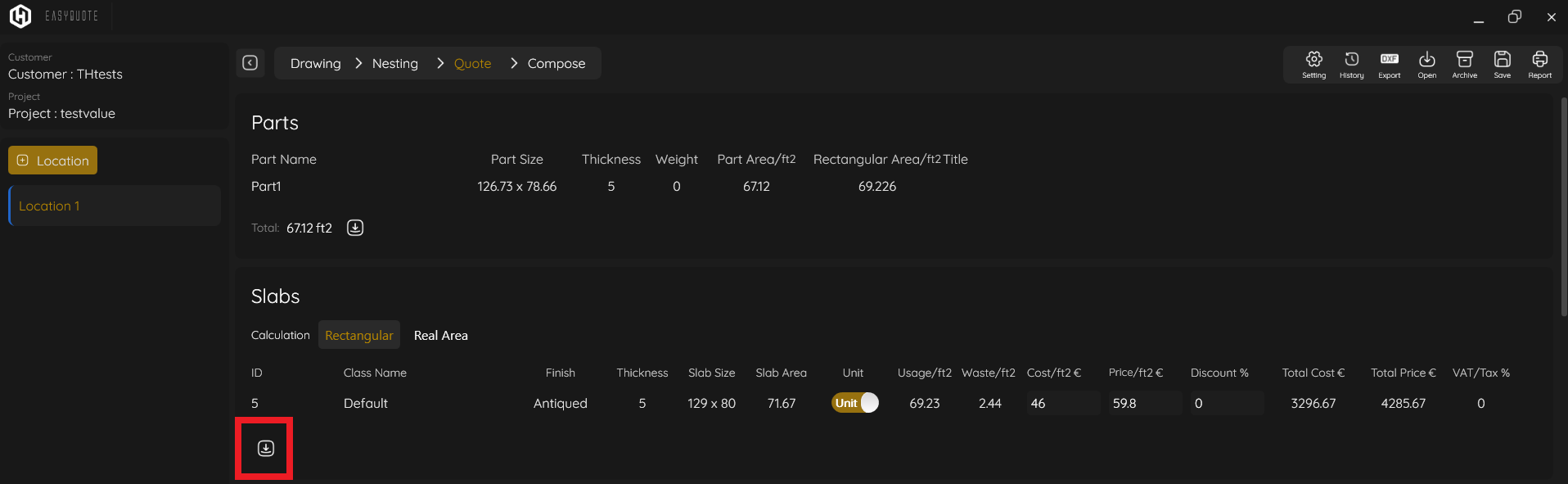
✔ Step 1 — Export the CSV
Use the Export CSV option in the EasyQuote interface.
?
✔ Step 2 — Open the CSV
Look for the fields:
imagearea or
imagearea_internal
These contain the real full-precision values used in calculations.
?
10. Final Explanation (Summary for Users)
Differences appear because:
The UI displays a rounded slab area (ex.: 71.67 ft²)
EasyQuote calculates using the exact internal value (ex.: 71.66667 ft²)
Small decimal differences multiplied by cost/price generate visible variations
This behavior is correct and mathematically expected
The system is behaving properly. The discrepancy comes from manual calculations using the rounded value instead of the actual internal area.
Was this article helpful?
That’s Great!
Thank you for your feedback
Sorry! We couldn't be helpful
Thank you for your feedback
Feedback sent
We appreciate your effort and will try to fix the article